When you add your website, we read its public pages and build a knowledge profile of your business: products, prices, policies, opening hours and contact details. Your test questions are built from that profile and your chatbot's answers are checked against it, so a correct profile means a fair, business-specific audit.
Before you start
- You need the Owner, Admin or Manager role in the workspace to add or edit websites.
- Your website must be publicly reachable. Pages behind a login, private network addresses and internal addresses are not crawled.
- The number of websites and pages you can add depends on your plan.
Step by step
1. Open the Websites page
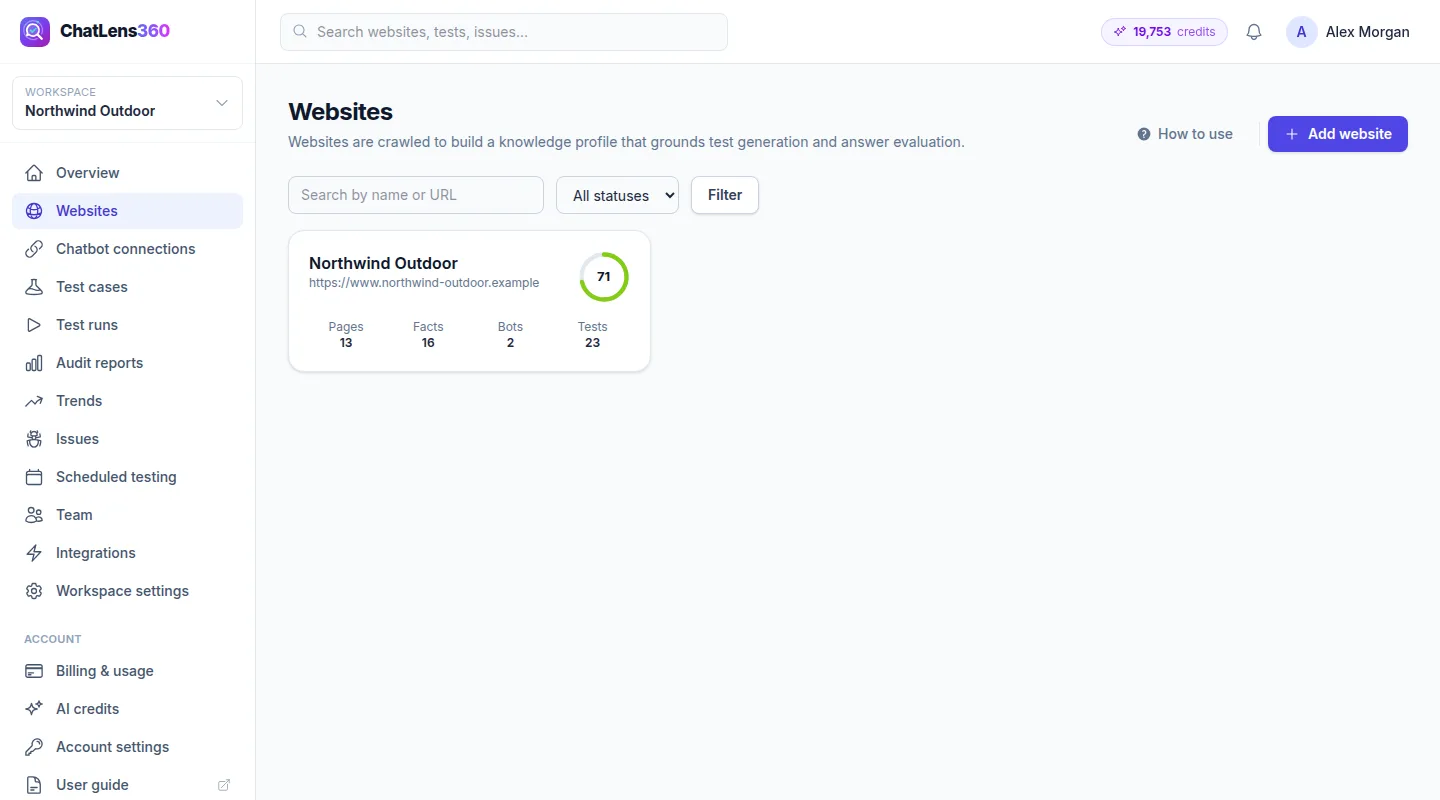
Click Websites in the left menu. Each website appears as a card with four counts: Pages, Facts, Bots and Tests. Once a website has a report, the card also shows its latest health score.
2. Add a website
Click Add website. In the Website section, enter a Name and the Website URL. You can also set the Website type (or leave Detect automatically), Industry, Category and Country (ISO code).
The optional Business context section (Business description, Target customers and What should the chatbot achieve?) makes your tests more relevant. Leave it blank and we infer it from your site.
On the right, choose your Primary language and any Additional languages your customers use. Under Crawling you can set:
- Max pages: how many pages to read (capped by your plan).
- Crawl depth: how many clicks away from the home page we go.
- Excluded paths: one per line, for example
/blog/*or/careers. We always respect your robots.txt. - Automatic recrawl: Weekly, Every 2 weeks, Monthly, Every 2 months or Quarterly, so the profile stays up to date.
Click Add website & start crawl. Crawling usually takes a few minutes.
3. Watch the crawl and read the overview
The website page shows Crawling in progress… with the number of pages crawled and knowledge items found. The page updates by itself.
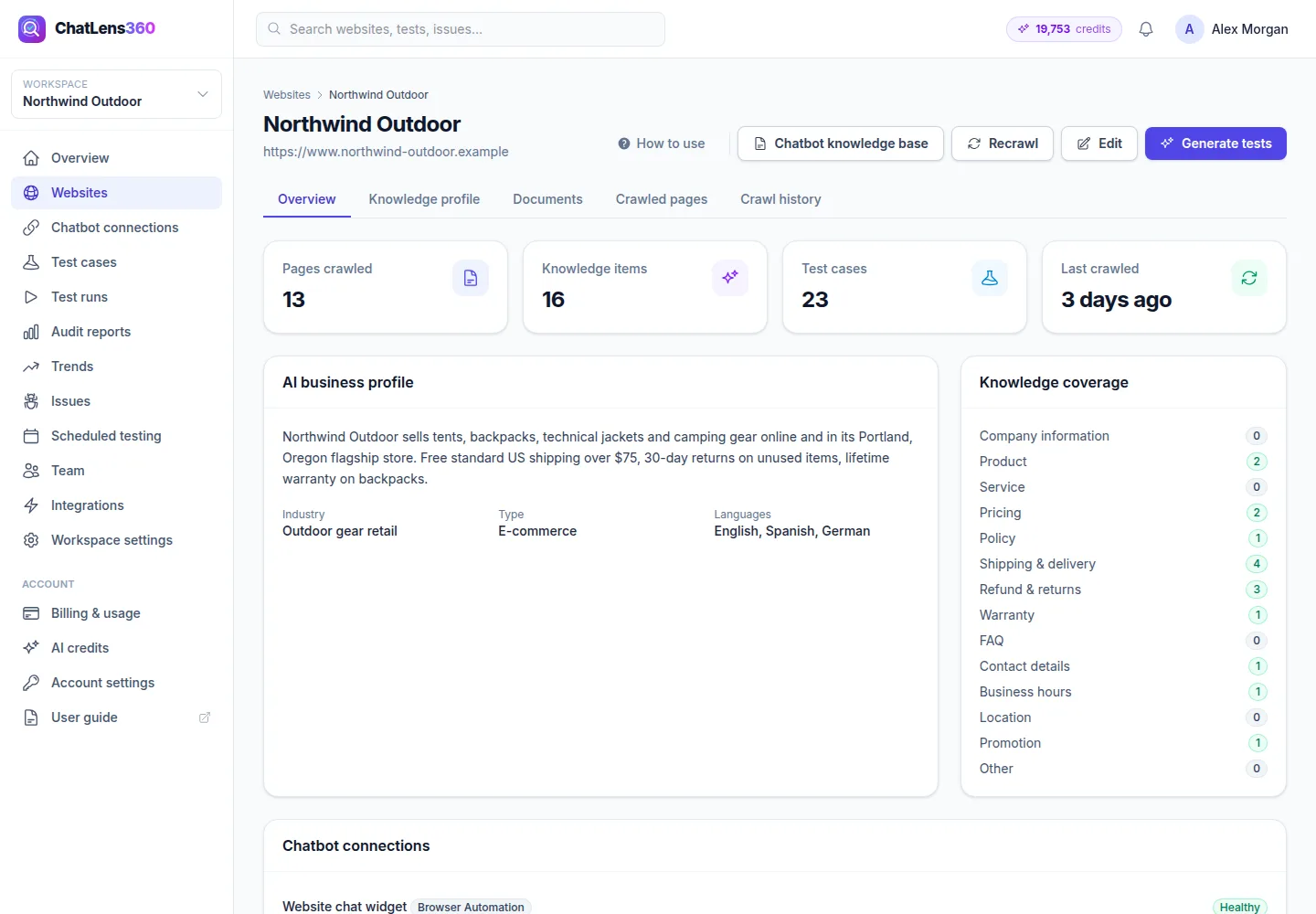
When it finishes, the Overview tab shows Pages crawled, Knowledge items, Test cases and Last crawled, plus:
- AI business profile: a short summary of what your business does, with industry, type and languages.
- Knowledge coverage: how many facts we found of each type, such as Pricing, Refund & returns, Shipping & delivery or Business hours. A zero here is worth checking.
- Chatbot connections: the bots linked to this site. If there are none, click Connect a chatbot.
4. Review the knowledge profile
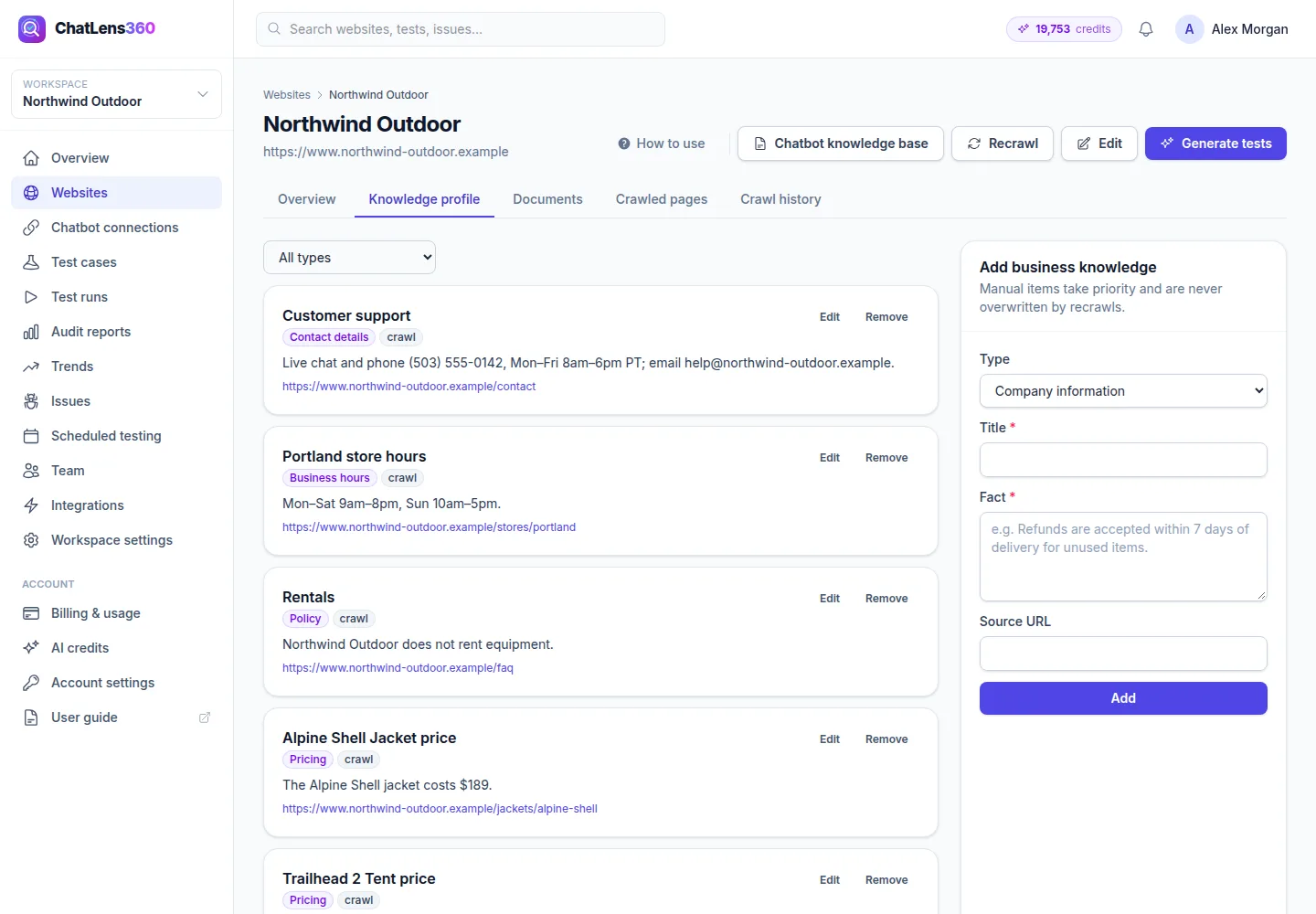
Open the Knowledge profile tab. These are the facts we hold your chatbot to, for example Northwind Outdoor's return window and shipping prices, each with its type and source. Use the All types filter to check one area at a time.
- If a fact is wrong or out of date, click Edit, correct it and click Save.
- If a fact should not be used, click Remove.
- If something important is missing, use Add business knowledge on the right: choose a Type, enter a Title and the Fact, and click Add.
Facts you add manually take priority and are never overwritten by recrawls.
5. Keep the profile current
Changed your prices or policies? Click Recrawl at the top of the website page. The Crawled pages tab lists every page read, and Crawl history shows each crawl with its status and notes.
When the profile looks right, click Generate tests to create test questions from it.
Tips
- Spend five minutes on the Knowledge profile before your first audit. A wrong fact there means a wrong verdict in your report.
- Add your current promotions as manual facts. Chatbots often invent discounts, and this lets the audit catch it.
- Exclude sections that do not matter to customers, such as job listings, to keep the profile focused.
- Turn on Automatic recrawl if your prices or stock change often.
Troubleshooting
- "The last crawl failed" — Read the error shown, check that the URL is correct and publicly reachable, then click Recrawl.
- "Waiting for a background worker" — The crawl is queued and starts automatically when capacity is free. If it stays like this, contact your administrator.
- Few pages were crawled — Raise Max pages or Crawl depth under Edit, check Excluded paths, and make sure robots.txt does not block the pages.
- "Your plan allows … Upgrade your plan to add more." — You have reached your plan's website limit. Remove an old website or upgrade.
Related guides
Still stuck? Contact us and we will help, or let our team set it up and fix it for you.