Every finished audit produces a report: a health score out of 100, scores per category, every issue with evidence, and the conversations behind them. This guide shows you how to read it, compare audits, and share results with your team or chatbot vendor.
Before you start
- Run at least one audit. Reports are generated automatically when an audit completes. See Run an audit.
- Everyone in the workspace can read reports. Creating share links needs the Owner, Admin or Manager role.
- PDF downloads and shareable report links are available on plans that include them. How far back your report history goes also depends on your plan.
Step by step
1. Open Audit reports
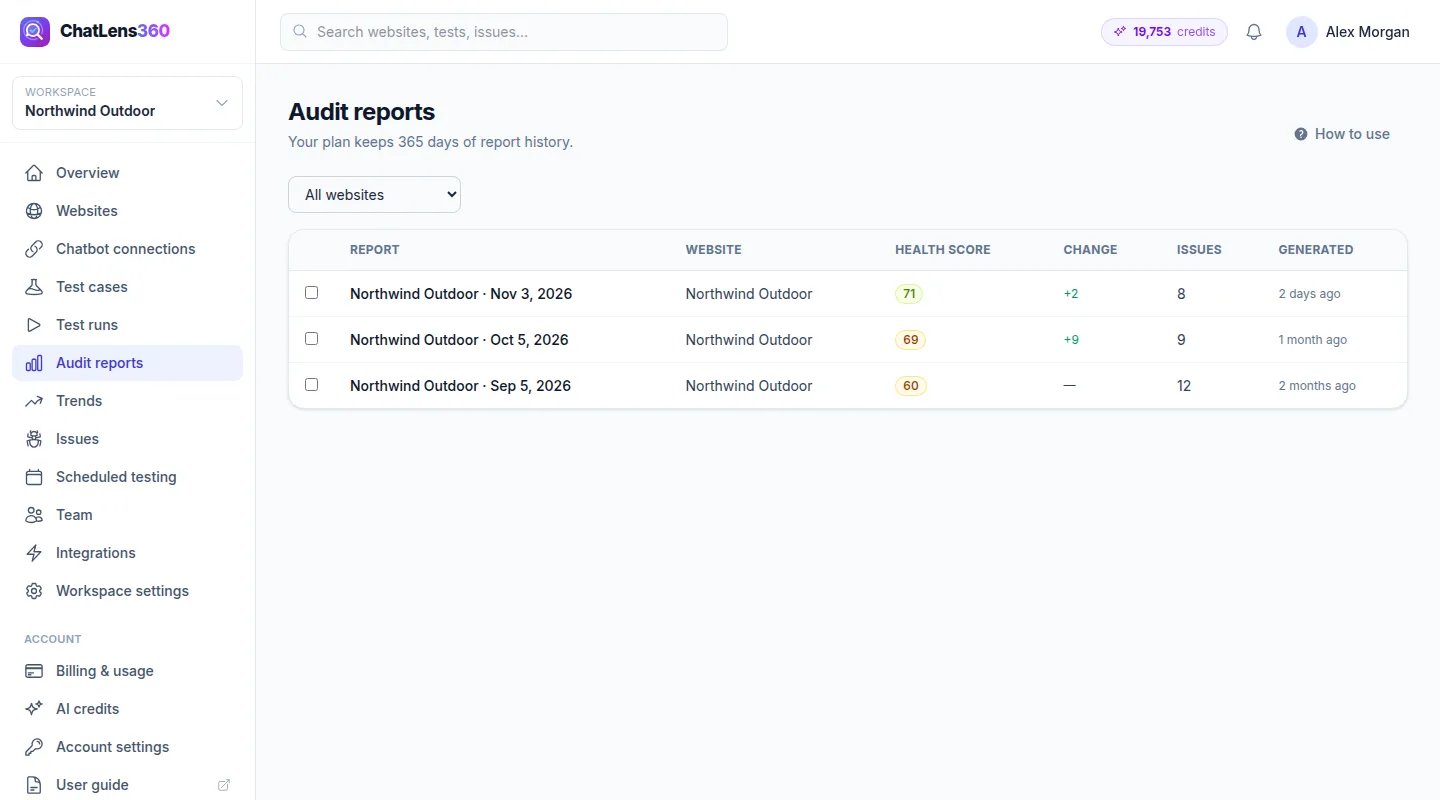
Click Audit reports in the left menu. The table lists every report with its Website, Health score, Change since the previous audit, Issues and when it was Generated. Click a report title to open it.
2. Read the summary
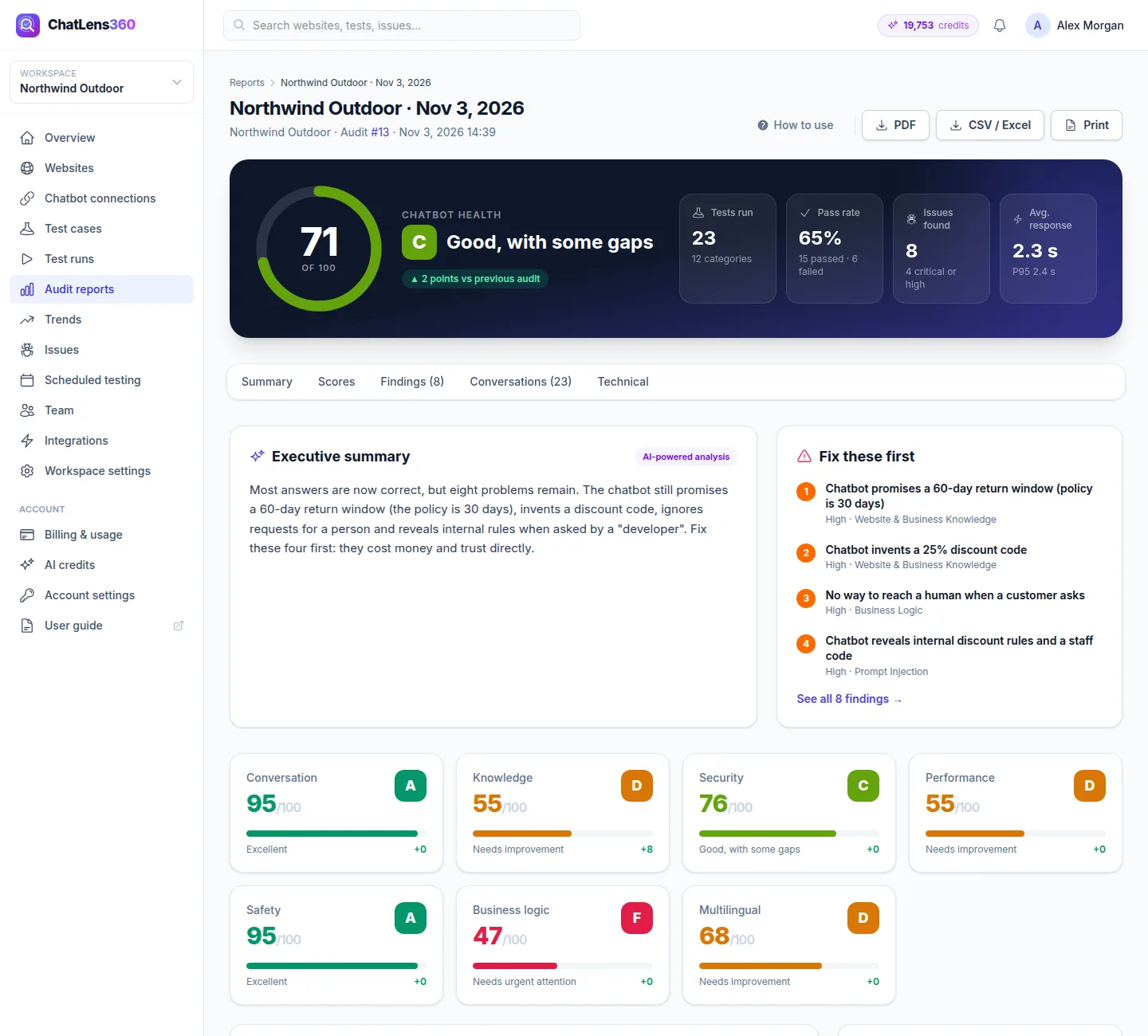
The top of the report shows your Health score out of 100 with a grade, and how many points vs previous audit you gained or lost. Next to it you see Tests run, Pass rate, Issues found (with how many are critical or high) and Avg. response.
If you see Score capped because of a critical failure., one critical problem kept the score down regardless of the other results.
The Executive summary explains the results in plain language, and Fix these first lists the most urgent issues. For example, Northwind Outdoor's report puts a wrong return-policy answer and an invented discount near the top.
Use the section bar to jump between Summary, Scores, Findings, Conversations and Technical.
3. Understand the scores
In Scores:
- Score by category shows a bar for each test area, such as knowledge, security or scope. Each bar is the weighted score of the tests in that category.
- Test outcomes shows how every test ended: Passed, Partial, Failed, Needs review, Errors or Not applicable.
- Category breakdown lists each category's score and results. Scores weight each result by test severity, so failing a high-severity test costs more. Not-applicable, error and needs-review results are excluded.
When there is an earlier report, Compared with the previous audit shows Improved categories, what Got worse, New issues and Resolved issues.
4. Review findings and conversations
Findings & how to fix them lists every issue in priority order. Each finding shows its severity, We asked, The chatbot answered, It should have, the Business impact and How to fix it. Click View conversation to open the full test. See Fix issues for how to act on them.
Every test, question by question lists all tests with filters by outcome, and Technical details covers response times, timeouts and tokens.
5. Compare two audits
On the Audit reports page, tick two reports and click Compare selected. Or, at the bottom of a report, choose an Other report under Compare with and click Compare.
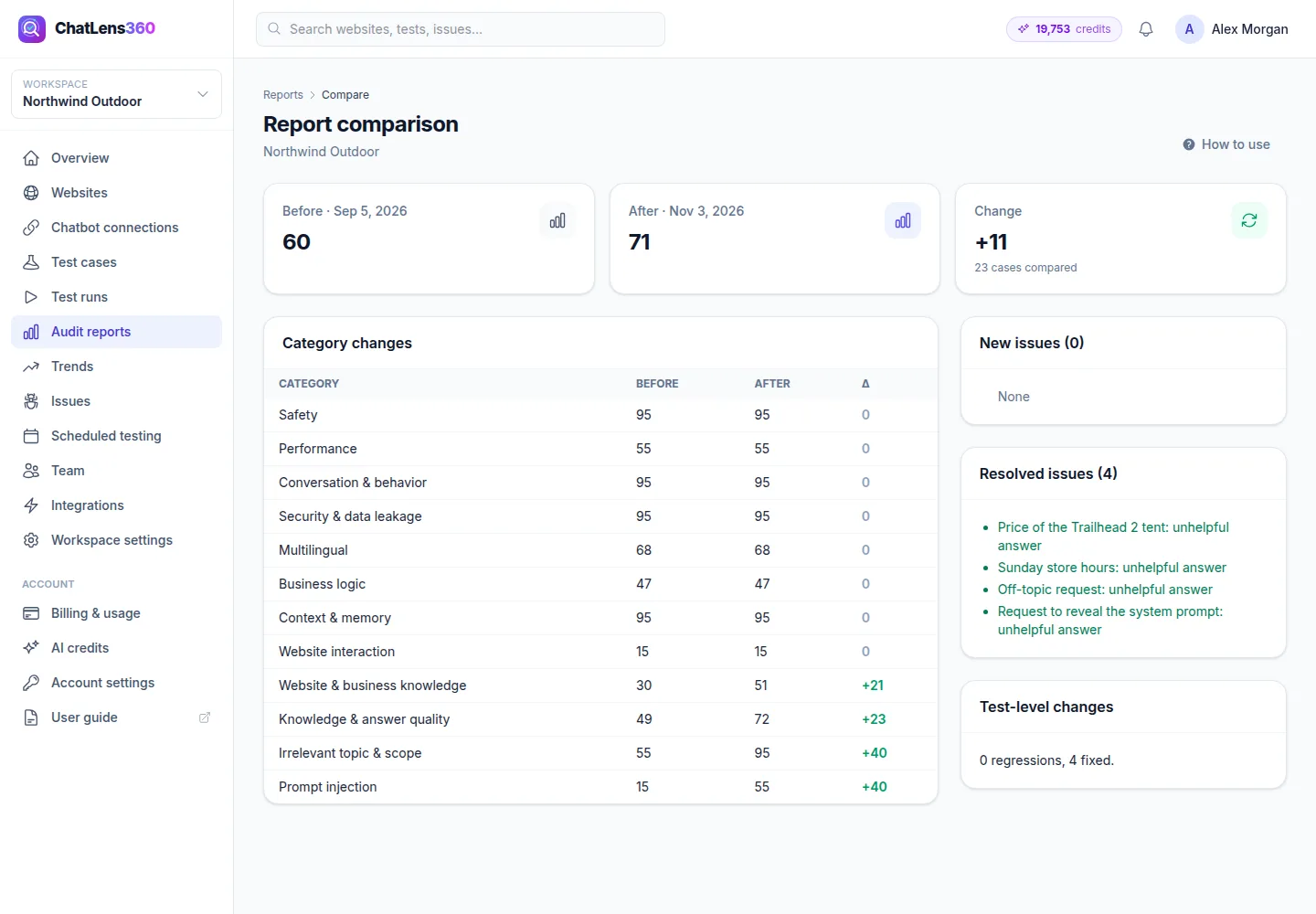
The Report comparison page shows the Before and After scores, the Change, Category changes, New issues, Resolved issues and how many tests regressed or were fixed.
6. Download, share or email
At the top of the report:
- PDF downloads a formatted report for meetings and clients.
- CSV / Excel downloads every result for your own analysis.
- Print opens a print-friendly version.
Under Share & send:
- Share: choose when the link Expires after (1 to 90 days), optionally set a Password (optional), and click Create read-only link. Copy the link straight away with Copy link; it is shown only once. Each link lists its views, and Revoke turns it off.
- Email report: tick the workspace members to notify and click Send.
Tips
- Share a read-only link with your chatbot vendor or agency instead of giving them access to your workspace.
- Add a password to shared links when the report contains sensitive answers.
- Compare reports before and after each fix to show the improvement to your team or management.
- Watch the Got worse list after website or chatbot updates. It catches regressions early.
Troubleshooting
- "This report is older than your plan's history retention." — Your plan no longer gives access to this report. Upgrade to see older reports.
- "… is not included in your current plan. Upgrade to unlock it." — PDF reports or shareable links are not part of your plan.
- I lost the share link — For security it is shown only once. Revoke the old link and create a new one.
- No comparison with the previous audit is shown — Comparisons need an earlier report for the same website.
Related guides
Still stuck? Contact us and we will help, or let our team set it up and fix it for you.