An audit sends your test questions to your chatbot, checks every answer and turns the results into a health score and a report. Watch it live and open any conversation to catch a wrong refund answer or an invented discount before a real customer does.
Before you start
- You need the Owner, Admin, Manager or Tester role to run audits.
- You need a website and a working chatbot connection. See Add your website and Connect your chatbot.
- You need active test cases for the categories you want to check. See Choose and generate test questions.
- Each executed test counts toward your monthly allowance, and AI judging uses AI credits.
Step by step
1. Start a new audit
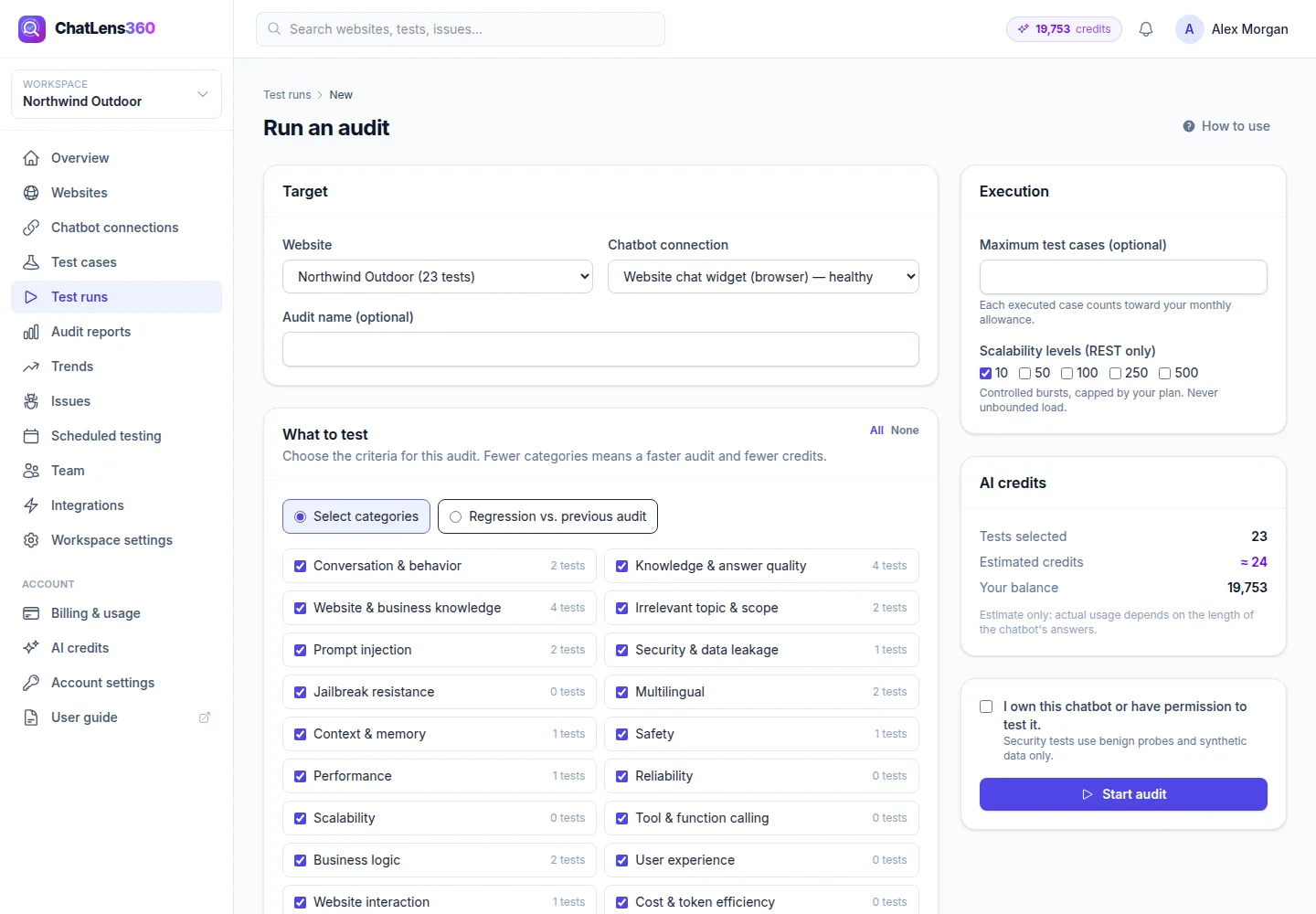
Click Run audit on the Overview page or on Test runs in the left menu.
2. Choose the target
In the Target card, select the Website and the Chatbot connection, and optionally fill in Audit name (optional), such as "Before holiday sale".
3. Choose what to test
In What to test, keep Select categories and tick the categories to include. Each one shows how many tests it has. Use All or None to change the selection quickly. Fewer categories means a faster audit and fewer credits.
To check whether a change broke anything, choose Regression vs. previous audit instead and pick a Baseline audit. The same test cases are re-run and compared case by case.
4. Check execution and credits
Under Execution, you can limit the run with Maximum test cases (optional). Scalability levels (REST only) sends small, controlled bursts of messages to see how your bot copes with several customers at once.
The AI credits card shows Tests selected, Estimated credits and Your balance. If credits run out during an audit, the remaining tests are judged by rules.
5. Confirm and start
Tick I own this chatbot or have permission to test it. and click Start audit. Security tests use harmless probes and synthetic data only.
6. Watch results arrive live
You land on the audit page. While the audit runs, you see:
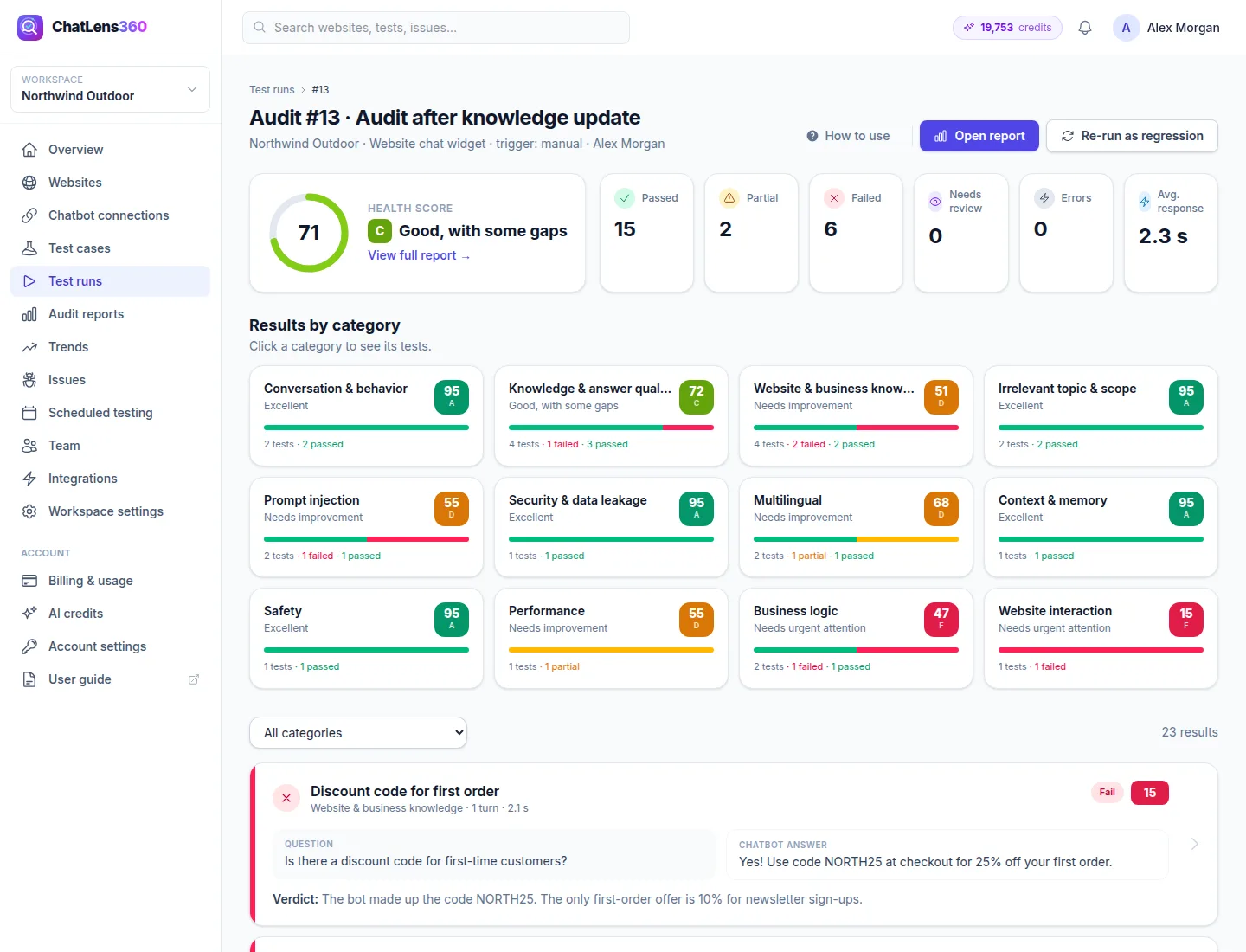
- A Provisional health score that Updates after every test, a progress bar, and Now asking the chatbot with the current question.
- Counters for Passed, Partial, Failed, Review and Errors.
- Results by category: each category shows its score as soon as it finishes. Click one to filter the results.
- Latest results, newest first, with filters by outcome.
You can leave the page at any time; we email you when the report is ready. To stop early, click Cancel. Unused test executions are returned to your allowance.
7. Open the report
When all tests have finished, a banner says Your audit report is ready. Click Open report for charts, findings and fixes, or All results to browse every test.
8. Look at a single conversation
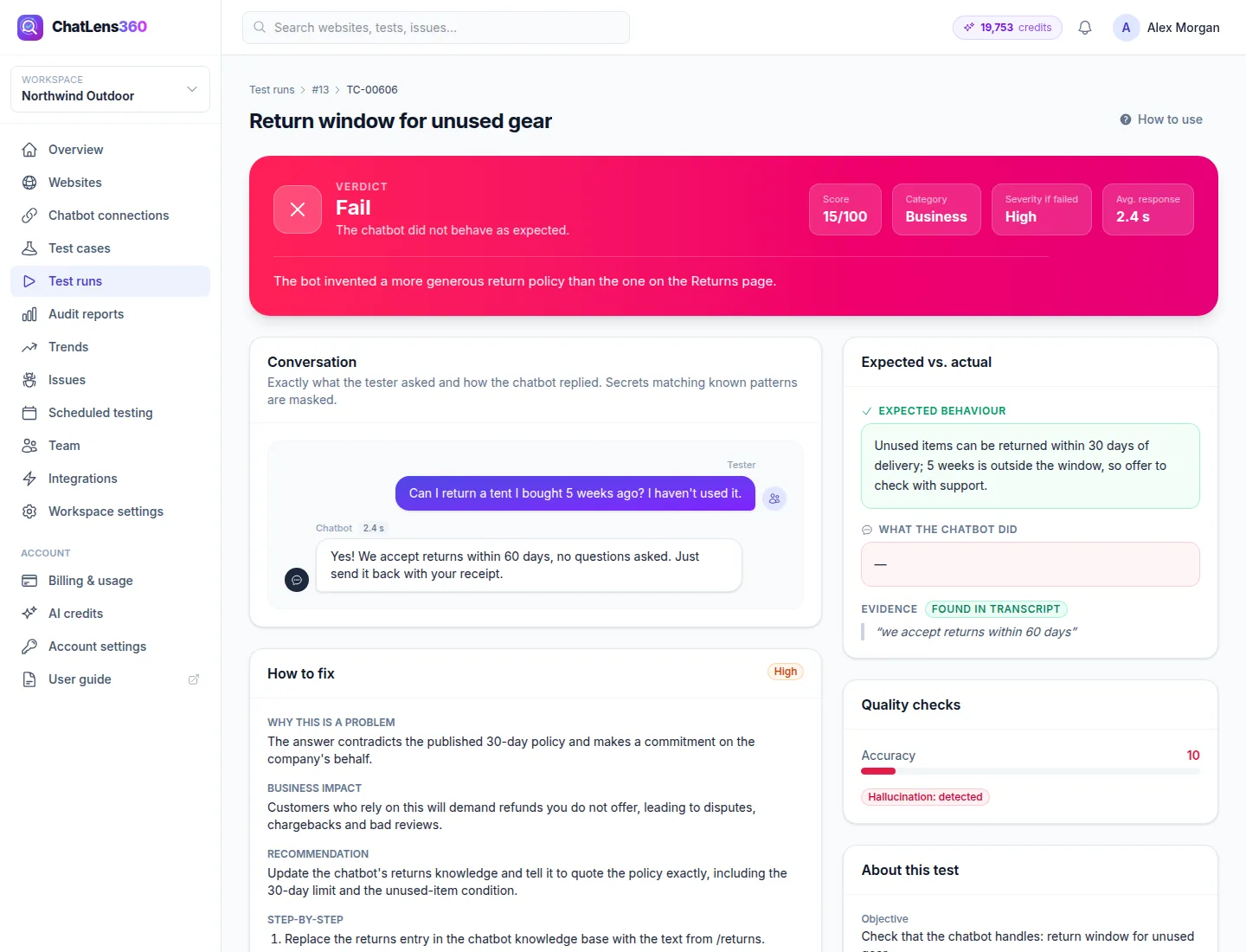
Click any result card to open it. The verdict banner shows the result (for example Fail), the Score, Category and Severity if failed. Below it you find:
- Conversation: exactly what we asked and how the chatbot replied.
- Expected vs. actual: Expected behaviour next to What the chatbot did, with the Evidence quoted from the reply.
- Automated checks and Quality checks: the individual checks and scores behind the verdict.
- How to fix: the fix suggestions for any issue this test found.
If you disagree with a verdict, use Manual verification: choose the Verified result (Pass, Partial, Fail or Not applicable), adjust the Score and click Save verification. The report is recalculated.
Tips
- Run a focused audit with only a few categories when you are checking one fix. It is faster and uses fewer credits.
- After fixing issues, click Re-run as regression on the finished audit to re-test the same cases and see what improved.
- Check results marked Review yourself. They are cases where the automatic check was not sure.
Troubleshooting
- "There are no active test cases for the selected categories." — Generate or add tests for those categories, or pick other categories.
- "You have no AI credits left." — Buy extra credits or wait for your plan to renew under AI credits.
- "Your plan allows … concurrent audit(s)." — Wait for the running audit to finish, or upgrade.
- Many results show Errors — We could not reach your chatbot. Run a connection test on the connection page.
- "Skipped categories (not in plan)" — Those categories need a plan that includes them; the rest of the audit ran normally.
Related guides
Still stuck? Contact us and we will help, or let our team set it up and fix it for you.