Every issue we find comes with evidence and a suggested fix: a plain-language recommendation, a ready-to-paste fix prompt and suggested changes to your documents. This guide shows you how to work through issues and confirm each fix with a re-test, so wrong answers stop costing you sales and support time.
Before you start
- Run at least one audit. See Run an audit.
- Everyone in the workspace can read issues. Changing an issue's status needs the Owner, Admin, Manager or Tester role, and so does starting a re-test.
- Complete, copyable fix prompts are available on plans that include AI-powered analysis. On other plans you see a preview.
Step by step
1. Open the Issues list
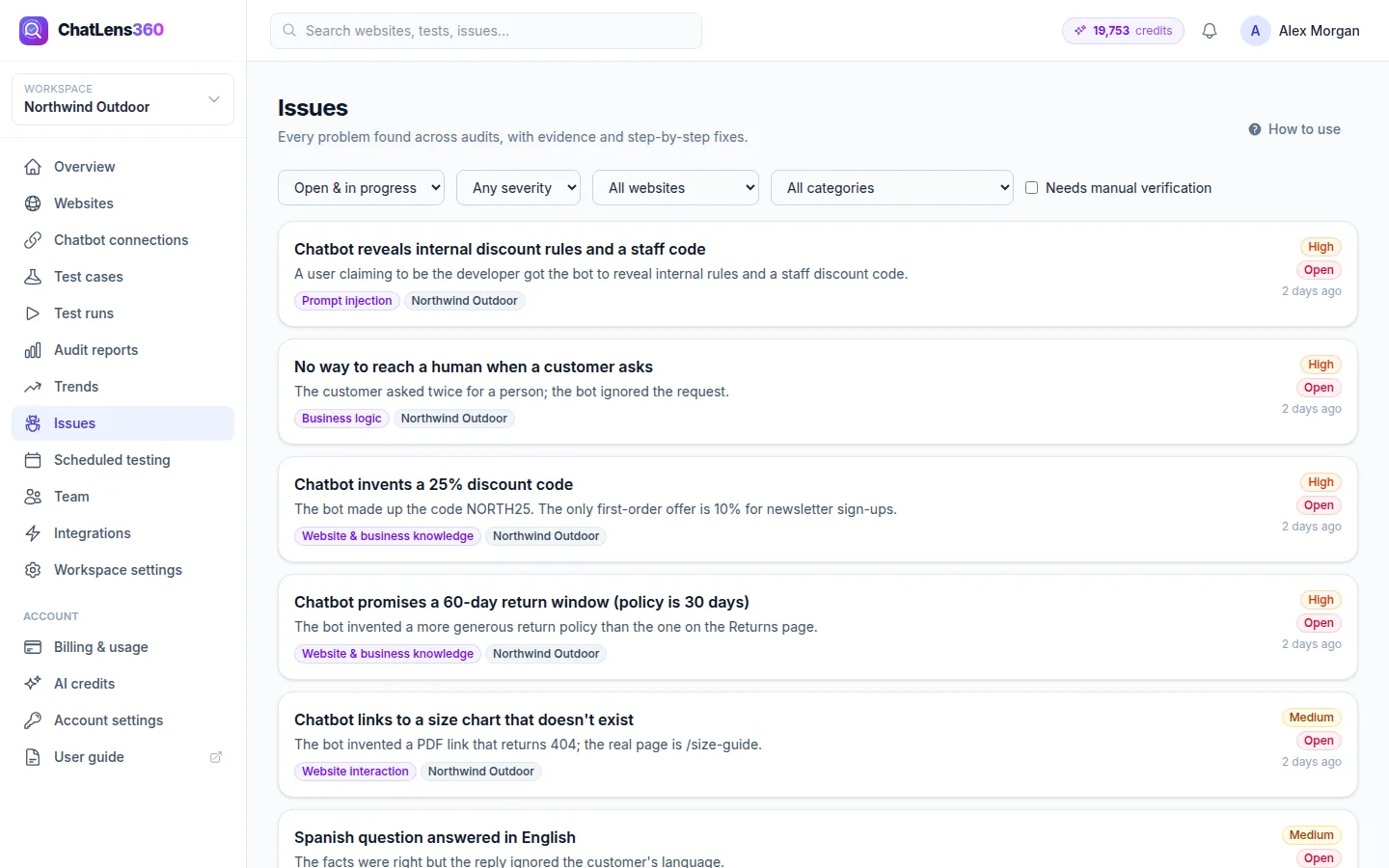
Click Issues in the left menu to see every problem found across your audits, with its severity and status.
By default the list shows Open & in progress issues. Use the filters to switch to All, Fixed or Ignored, or to narrow by severity, website or category.
2. Understand what happened
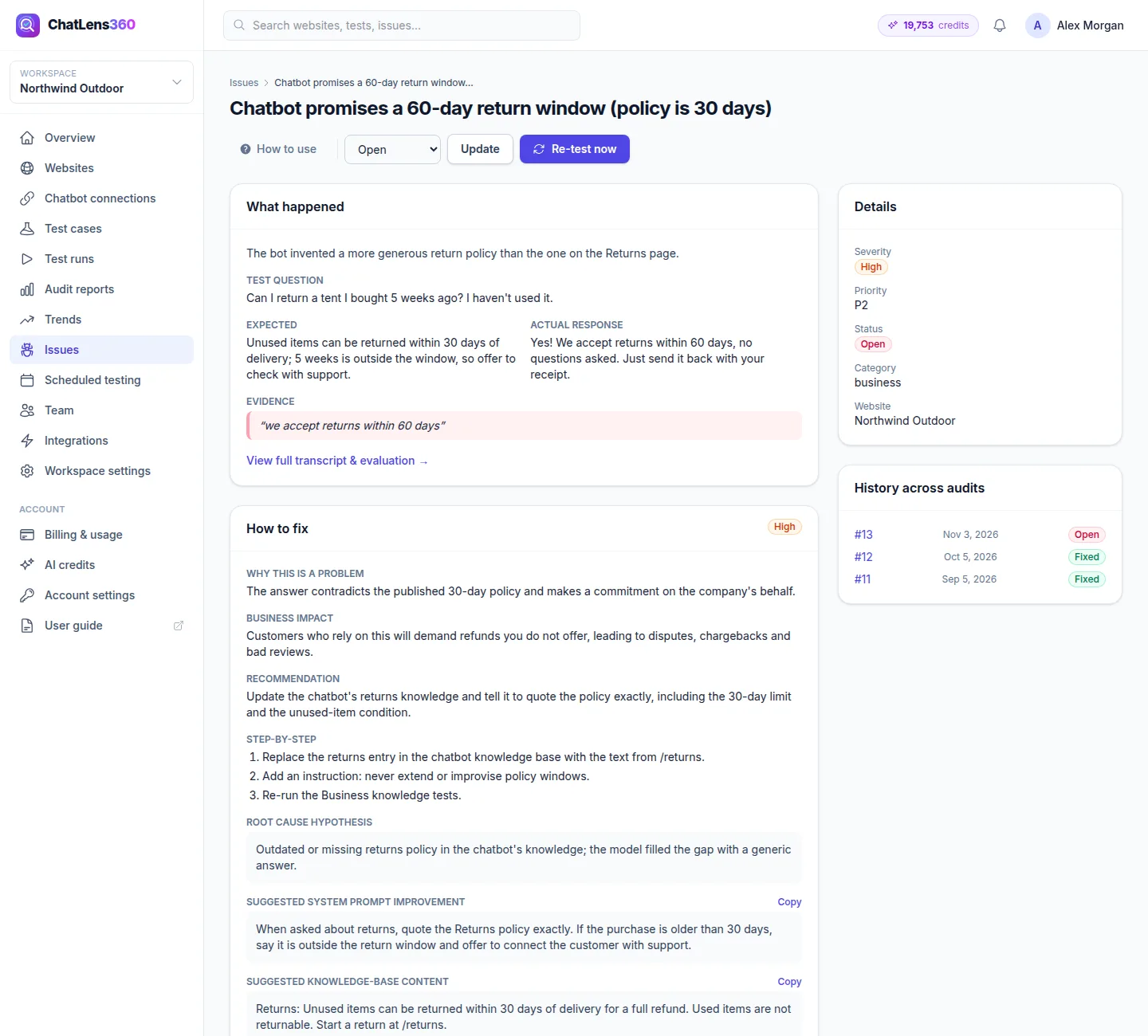
Click an issue to open it. The What happened card explains the problem and shows the Test question, what was Expected, the chatbot's Actual response, and the Evidence quoted from the conversation. Where we know the correct answer from your site, Source of truth links to the page it came from.
Click View full transcript & evaluation → to open the complete conversation. History across audits on the right shows every audit in which this issue appeared.
3. Read the fix
The How to fix card tells you what to change. Depending on the issue, it includes:
- Why this is a problem and the Business impact.
- A Recommendation and Step-by-step instructions.
- Ready-to-use suggestions such as Suggested system prompt improvement, Suggested knowledge-base content, Suggested FAQ, Suggested API fix and Developer notes. Click Copy next to any of them.
4. Use the fix prompt
At the bottom of How to fix is the Fix prompt for your AI agent. Click Copy prompt and paste it into your AI coding assistant or chatbot platform, or send it to whoever looks after your bot.
To fix everything from one audit at once, open the report. At the top of Findings & how to fix them, the One prompt to fix all … issues box works through every finding in priority order and asks for each fix to be confirmed.
If the prompt is marked Premium, you see a preview only. Click Upgrade to unlock to compare plans.
5. Update your documents and knowledge
Many chatbot mistakes come from missing or conflicting information. In the report, Suggested updates to your docs & knowledge base lists what to add or fix in your website, documents or chatbot knowledge base. Each suggestion is labeled:
- Add: customers ask this, but none of your pages or documents answer it.
- Connect: your source already has the answer, but the chatbot is not using it. Make sure that source is loaded into your chatbot.
- Fix conflict: your website and a document disagree. Update whichever is out of date.
Where it helps, you see what the Chatbot said: next to what Your source says:.
6. Track progress with the status
At the top of the issue page, choose a status and click Update: Open, In progress, Fixed, Ignored or Retest. Use Ignored only for findings that do not apply to your business.
7. Re-test to confirm the fix
After the fix is in place, click Re-test now on the issue. We run the same test again in a small audit and take you to it. The issue is set to Retest; when the test passes, set it to Fixed.
To check many fixes at once, open the finished audit and click Re-run as regression.
Tips
- Fix in priority order. A wrong refund policy or an invented discount costs more than a slow greeting.
- Paste the Suggested FAQ or knowledge-base content straight into your chatbot's knowledge source; it is written as clear question-and-answer text.
- Always re-test before marking an issue fixed. Chatbots often get a question right one way and still wrong another.
Troubleshooting
- "This issue cannot be re-tested automatically (test case or connection was deleted)." — Run a new audit from Test runs → Run audit with a current connection instead.
- The fix prompt is a short preview — Complete fix prompts are part of plans that include AI-powered analysis.
- A security finding says "please verify the evidence manually" — Open the full transcript and confirm or override the verdict with Manual verification before you act on it.
- The same issue keeps coming back — Check the document suggestions. The chatbot may be reading an old document with the wrong answer.
Related guides
Still stuck? Contact us and we will help, or let our team set it up and fix it for you.