Your plan decides how many websites, chatbots, audits and team members you can use, and it includes a monthly allowance of AI credits for the AI-powered parts of testing. This guide shows you how to check your usage, change plans, top up credits and find your invoices, so audits never stop at a bad moment.
Before you start
- Billing belongs to your user account. Your plan applies to every workspace you own, and workspaces you were invited to use their owner's plan.
- You can start on the free plan. No credit card is needed until you pick a paid plan.
Step by step
1. Check your plan and usage
In the left sidebar, under Account, click Billing & usage.
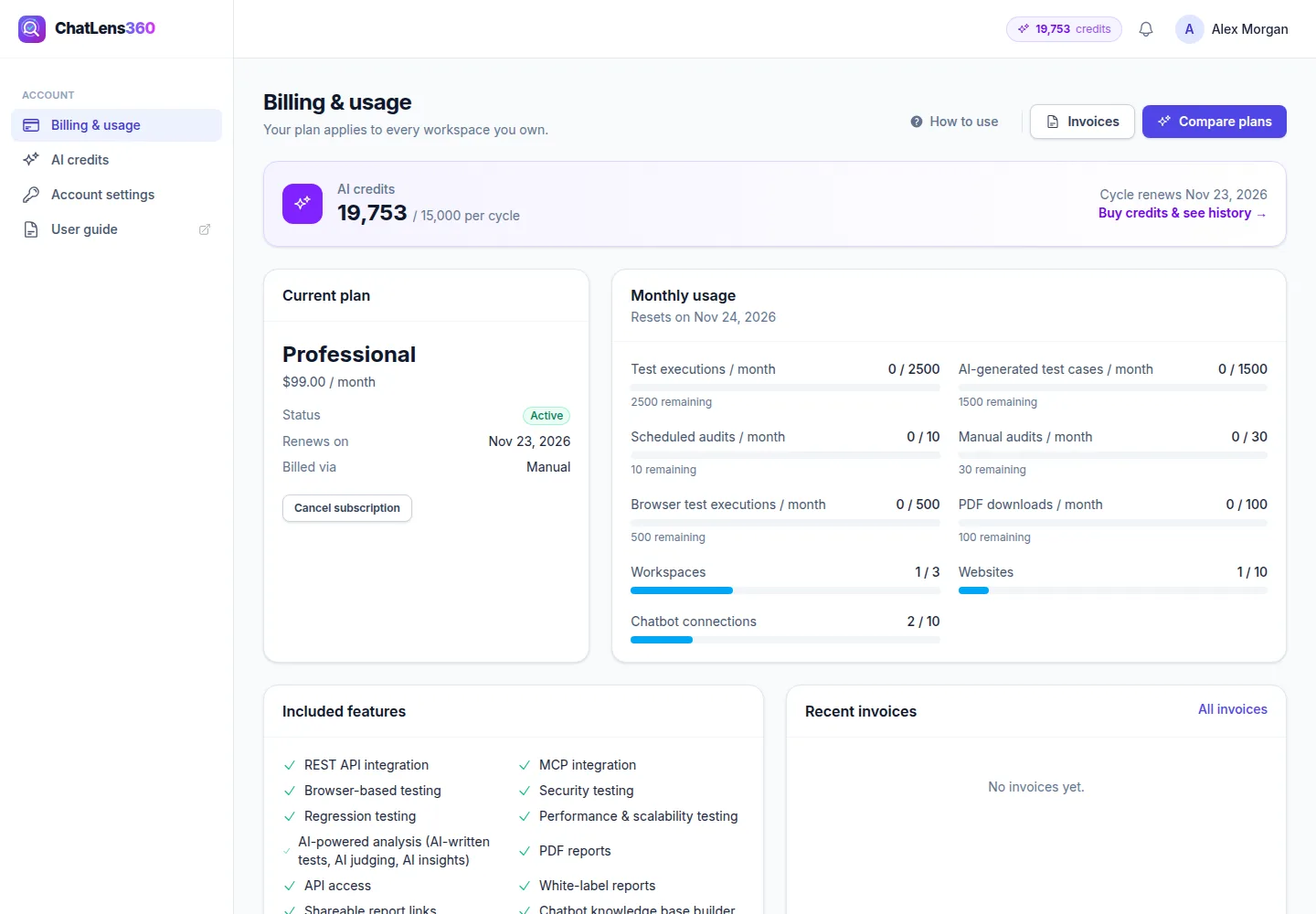
The page shows:
- AI credits: your balance and when the cycle renews. Click the banner to open the AI credits page.
- Current plan: the plan name, price, Status, and Renews on (or Access until if you cancelled).
- Monthly usage: bars for each limit, such as audits, test executions and PDF downloads, with what is left. They reset on the date shown. A warning appears when you are close to a limit.
- Included features: what your plan includes (ticked) and what it does not.
- Recent invoices: your latest payments. Click All invoices or Invoices for the full history.
2. Upgrade, switch or downgrade
Click Compare plans (or Upgrade if you are on the free plan). On Choose your plan, pick Monthly or Yearly billing; yearly saves about two months.
- Click Get (plan name) to subscribe, or Switch to (plan name) to change an active plan. Changes to paid plans are prorated.
- Click Downgrade on the free plan to move to it at the end of your billing period.
For custom limits, click Talk to sales about Enterprise.
3. Understand AI credits
AI features (AI-written tests, AI judging, AI summaries and website analysis) use credits. Under Account, click AI credits, or click the credit counter in the top bar.
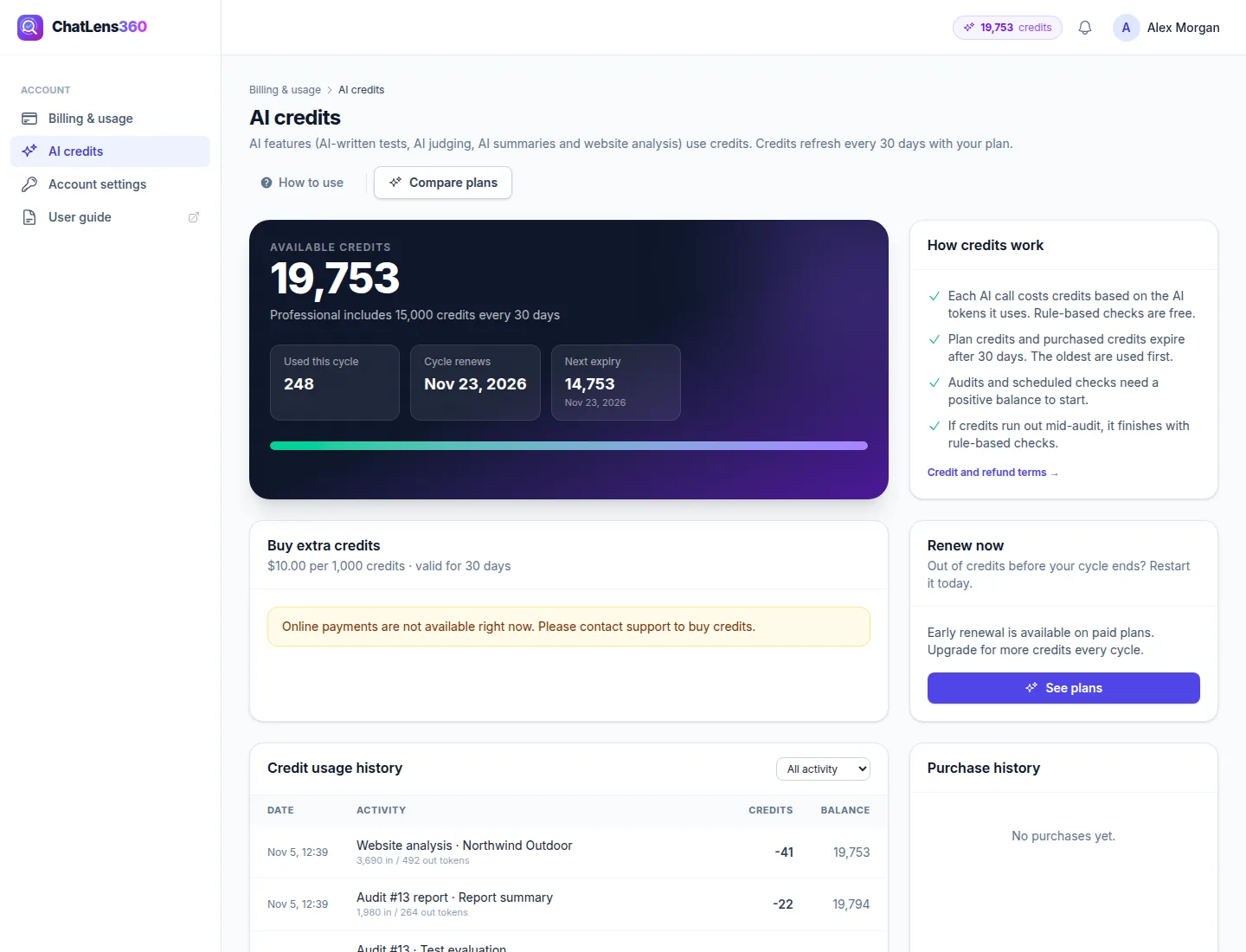
The How credits work card sums up the rules:
- Each AI call costs credits based on how much AI work it does. Rule-based checks are free.
- Your plan grants a fresh allowance each cycle. Plan credits and purchased credits expire after the number of days shown, and the oldest are used first.
- Audits and scheduled checks need a positive balance to start.
- If credits run out during an audit, it still finishes with rule-based checks.
4. Buy extra credits
In Buy extra credits, click one of the packs, or type a number in Or enter an amount. The Total updates as you type. Click Buy credits and complete checkout. When you return, Payment received confirms the credits were added. If you see Confirming your payment…, refresh the page in a minute.
5. Renew early
If you run out before the cycle ends, use Renew now on a paid plan. Tick I understand this is a one-time payment in addition to my subscription. and click Renew credits for (price). A new credit cycle starts today with a fresh allowance; unused plan credits from the old cycle are replaced.
6. Review your history
Credit usage history lists every credit change with the Date, Activity, Credits and Balance. Use the filter to show Usage, Plan credits, Purchases, Expired, Refunds or Adjustments. Purchase history lists your credit purchases and renewals.
7. Cancel or update payment
On Billing & usage, click Cancel subscription. You keep access until the end of the period, then move to the free plan. Changed your mind? Click Resume subscription. Click Payment methods to update your card, when available.
Tips
- Keep an eye on the credit counter in the top bar before a big audit or a busy month of scheduled checks. Topping up early avoids skipped audits.
- If you regularly buy extra credits, compare plans: a higher plan's allowance often works out better.
- Turn on Usage limit warnings and Billing and invoices under Account settings → Email notifications so you hear about limits before they block your team.
- Choose yearly billing once you know which plan fits, to save about two months.
Troubleshooting
- "Out of credits: buy or renew": audits and scheduled checks are paused until you buy credits or renew. Scheduled audits resume automatically on the next run.
- "Payment failed": we could not collect your last payment. Click Update payment method to keep your plan.
- "Online payments are not available right now.": contact support to buy credits or change your plan.
- A feature shows "is not included in your current plan": check Included features and upgrade to a plan that has it.
Related guides
Still stuck? Contact us and we will help, or let our team set it up and fix it for you.